Instructions
Find easy to follow instructions
All GSAP animations used in this template are collected here. On this page, you’ll find guidance on how to locate and edit them. Each code block comes with extra notes to make it easier to understand.
You can find the code in the Embed Code inside this template.
Before that, prepare the library package from GSAP for some animations. This animation makes the scrolling experience smoother across all devices.
<script src="https://unpkg.com/lenis@1.3.1/dist/lenis.min.js"></script>
<script src="https://cdn.jsdelivr.net/npm/gsap@3.14.1/dist/gsap.min.js"></script>
<script src="https://cdn.jsdelivr.net/npm/gsap@3.14.1/dist/SplitText.min.js"></script>
<script src="https://cdn.jsdelivr.net/npm/gsap@3.14.1/dist/ScrollTrigger.min.js"></script>
<script src="https://cdn.jsdelivr.net/npm/gsap@3.14.1/dist/ScrambleTextPlugin.min.js"></script>
Animations for headline, subline, and mouse trail.
<script>
	/* =====================================================
     SMOOTH SCROLLING (Desktop & Tablet Only)
  ===================================================== */
   // lenis smooth scroll

{
  let lenis;

  const initScroll = () => {
    lenis = new Lenis({});
    lenis.on("scroll", ScrollTrigger.update);
    gsap.ticker.add((time) => lenis.raf(time * 1000));
    gsap.ticker.lagSmoothing(0);
  };

  function initGsapGlobal() {

    // Do everything that needs to happen
    //  before triggering all
    // the gsap animations

    initScroll();

    // match reduced motion media
    // const media = gsap.matchMedia();

    // Send a custom
    //  event to all your
    // gsap animations
    // to start them

    const sendGsapEvent = () => {
      window.dispatchEvent(
        new CustomEvent("GSAPReady", {
          detail: {
            lenis,
          },
        })
      );
    };

    // Check if fonts are already loaded

    if (document.fonts.status === "loaded") {
      sendGsapEvent();
    } else {
      document.fonts.ready.then(() => {
        sendGsapEvent();
      });
    }

    // We need specific handling because the
    // grid/list changes the scroll height of the whole container
    //

    let resizeTimeout;
    const onResize = () => {
      clearTimeout(resizeTimeout);
      resizeTimeout = setTimeout(() => {
        ScrollTrigger.refresh();
      }, 50);
    };

    window.addEventListener("resize", () => onResize());
    const resizeObserver = new ResizeObserver((entries) => onResize());
    resizeObserver.observe(document.body);

    queueMicrotask(() => {
      gsap.to("[data-start='hidden']", {
        autoAlpha: 1,
        duration: 0.1,
        delay: 0.2,
      });
    });
  }

  // this only for dev

  const documentReady =
    document.readyState === "complete" || document.readyState === "interactive";

  if (documentReady) {
    initGsapGlobal();
  } else {
    addEventListener("DOMContentLoaded", (event) => initGsapGlobal());
  }
}
</script>
<script>

     // SCRAMBLE TEXT HERO SECTION
    gsap.registerPlugin(ScrambleTextPlugin);

    window.addEventListener("GSAPReady", () => {

      document.querySelectorAll(".text-tagline-std").forEach(el => {
        const original = el.textContent.trim();
        if (!original) return;

        el.textContent = "";

        gsap.to(el, {
          duration: 1.8,
          scrambleText: {
            text: original,
            chars: "ab-de+0gh)1",
            speed: 1,
            rightToLeft: false
          },
          delay: 0.2
        });
      });

    });


  // NUMBER ACHIEVEMENT (SPACER AS TRIGGER)
    gsap.registerPlugin(ScrollTrigger);

    window.addEventListener("GSAPReady", () => {

      const trigger = document.querySelector(".spacer-trigger");
      const counters = document.querySelectorAll(".achievement-number");

      if (!trigger || counters.length === 0) return;

      counters.forEach(counter => {
        const target = parseInt(counter.dataset.number, 10);
        if (isNaN(target)) return;

        const obj = { value: 0 };

        gsap.to(obj, {
          value: target,
          duration: 1.6,
          ease: "power3.out",
          scrollTrigger: {
            trigger: trigger,
            start: "top 65%",
            once: true,
            markers: false
          },
          onUpdate: () => {
            counter.textContent = Math.round(obj.value);
          }
        });
      });
      ScrollTrigger.refresh();

    });


  /* =====================================================
     NAVBAR HOVER ANIMATION
  ===================================================== */

document.addEventListener("DOMContentLoaded", () => {

  if (typeof gsap === "undefined") {
    console.error("GSAP Error");
    return;
  }

 function splitChars(el) {
    if (!el) return [];
    const text = el.textContent.trim();
    el.textContent = "";
    const chars = [];
    [...text].forEach(ch => {
      const span = document.createElement("span");
      span.textContent = ch === " " ? "\u00A0" : ch;
      span.style.display = "inline-block";
      el.appendChild(span);
      chars.push(span);
    });
    return chars;
  }


  document.querySelectorAll(".navbar-item").forEach(item => {
    const defaultEl = item.querySelector(".navbar-item-text.default");
    const hiddenEl = item.querySelector(".navbar-item-text.hidden");

    if (!defaultEl || !hiddenEl) return;

    const defaultChars = splitChars(defaultEl);
    const hiddenChars = splitChars(hiddenEl);

    gsap.set(defaultChars, { yPercent: 0, opacity: 1 });
    gsap.set(hiddenChars, { yPercent: 100, opacity: 0 });

    const tl = gsap.timeline({ paused: true, defaults: { duration: 0.4, ease: "power2.out" } });
    tl.to(defaultChars, {
      yPercent: -100,
      opacity: 0,
      stagger: 0.03
    }, 0)
    .to(hiddenChars, {
      yPercent: 0,
      opacity: 1,
      stagger: 0.03
    }, 0.05);

    // hover control
    item.addEventListener("mouseenter", () => tl.play());
    item.addEventListener("mouseleave", () => tl.reverse());
  });
});

</script>
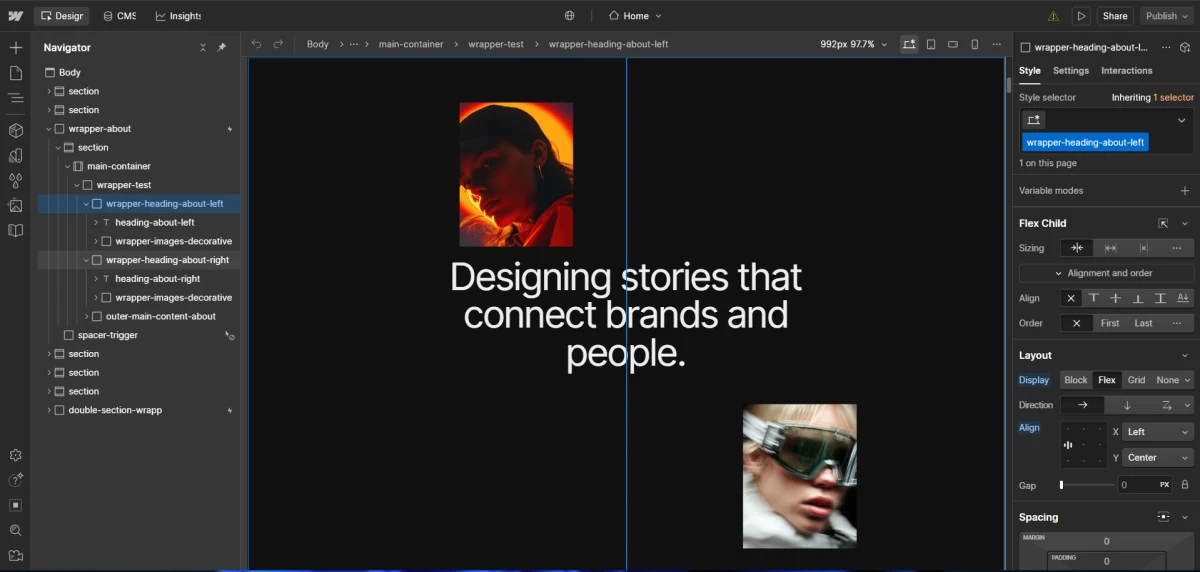
If you want to change or edit the main About Us content, you are required to follow the instructions shown in the image above first.
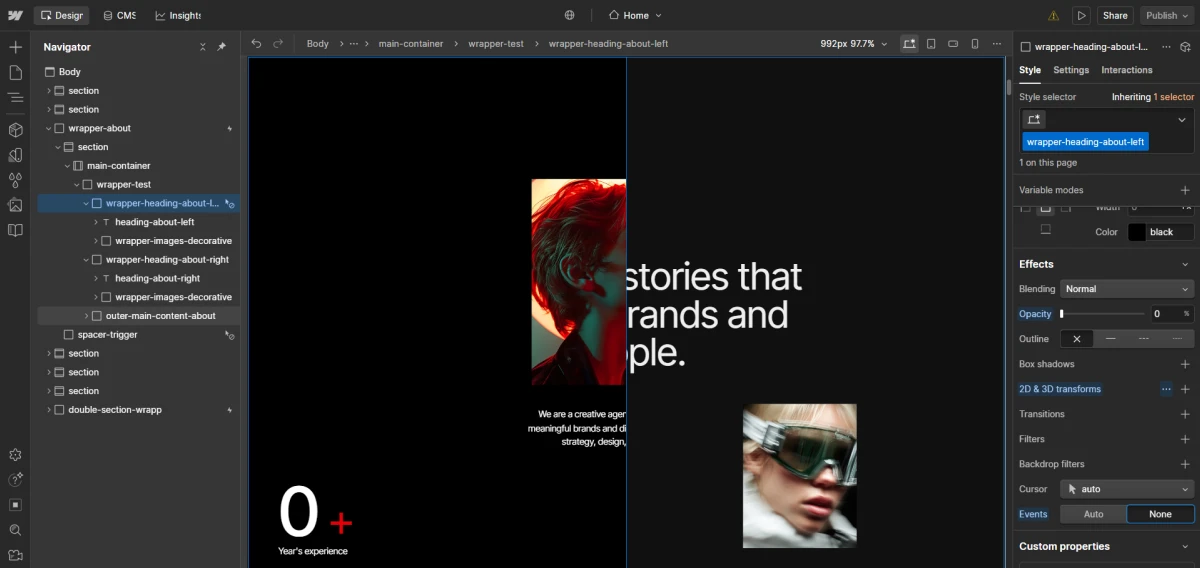
Next, you must change the opacity from 100% → 0%, then change the Event setting from auto → none. This method applies specifically to the following two div block classes: “wrapper-heading-about-left” and “wrapper-heading-about-right”. After that, you will be able to see the main About Us content.
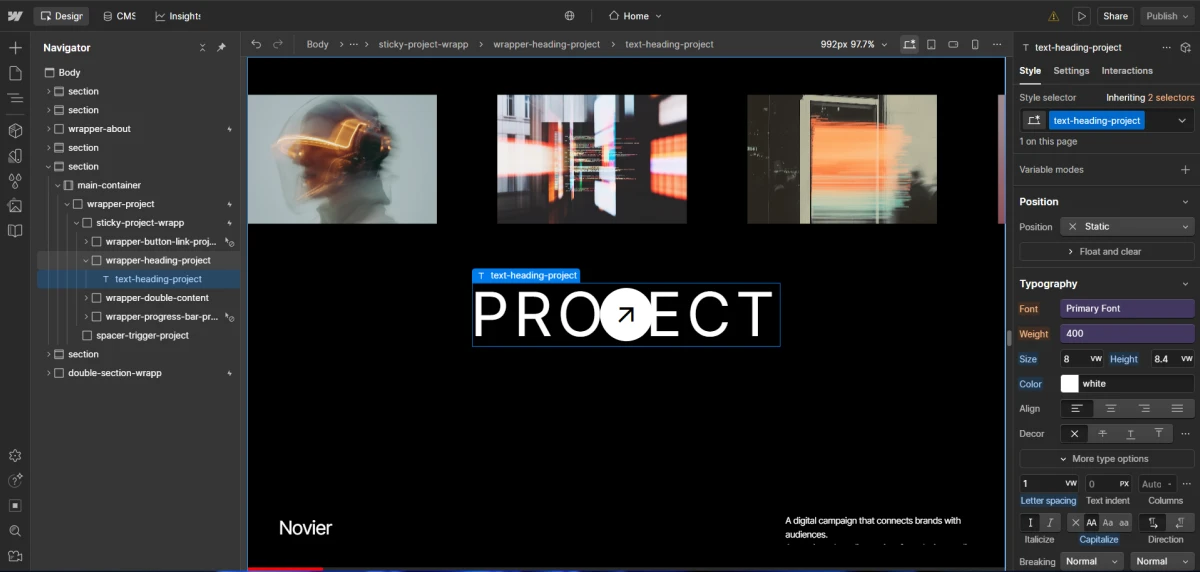
For the project heading text section, you only need to open several div blocks as shown in the image below.
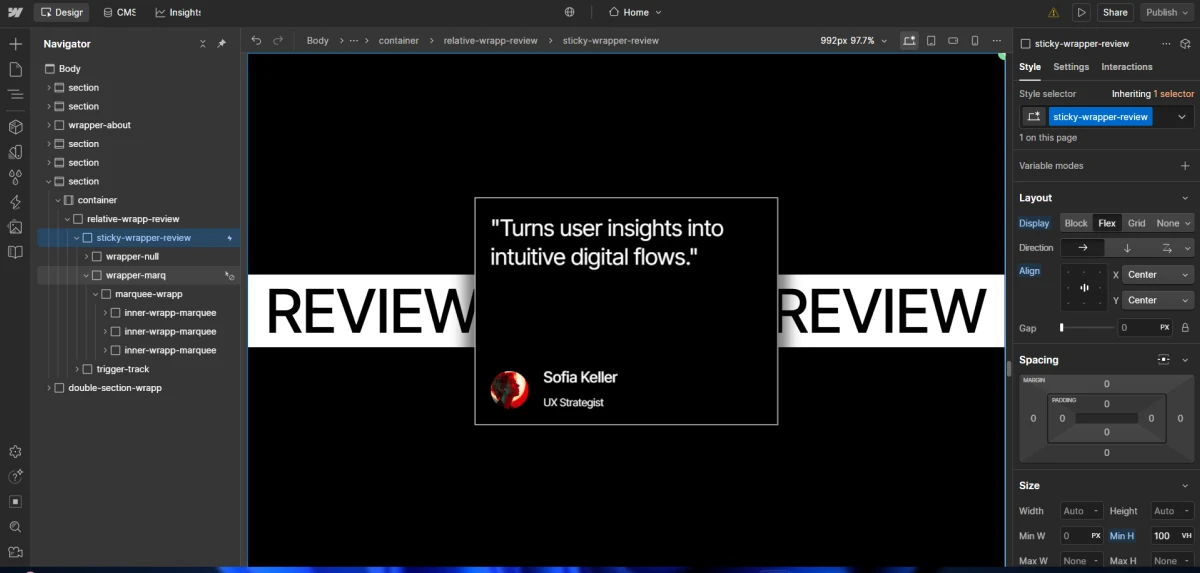
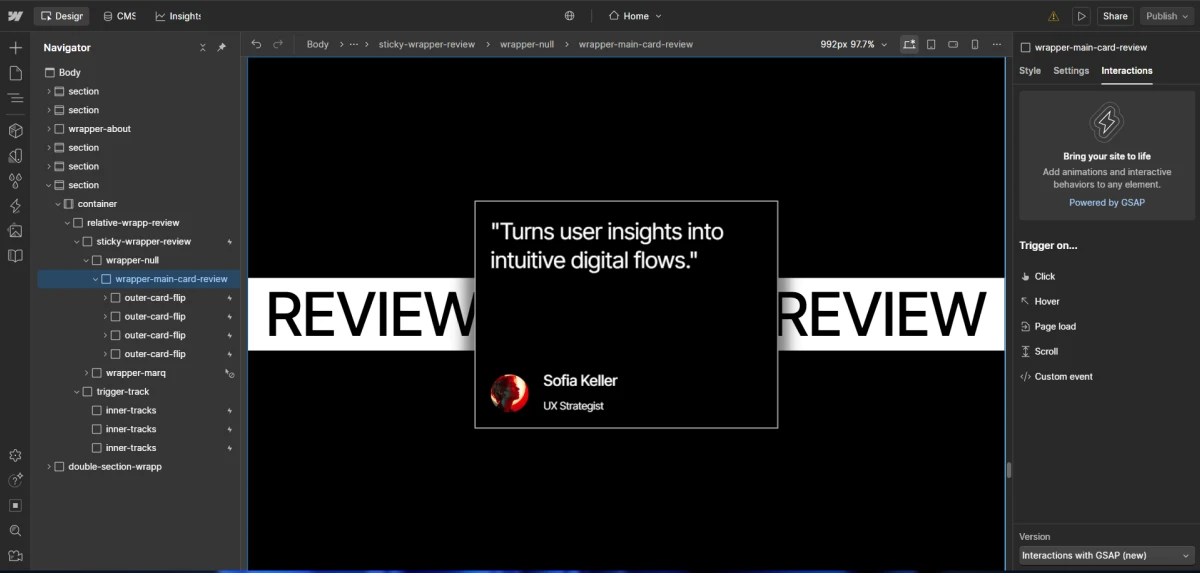
For the review section, you can follow what is shown in the image above—especially if you want to edit the review card content. If you notice the div block with the class “trigger-track” containing three additional div blocks, it functions as the trigger for the GSAP entrance animation.
Below is the div block used to modify the Marquee animation in this section.